The Data Privacy Module is based on the Four Eyes Principle which follows the idea that at least two people must approve any decision or operation. The principle is a mechanism to ensure transparency and delegate authority effectively.
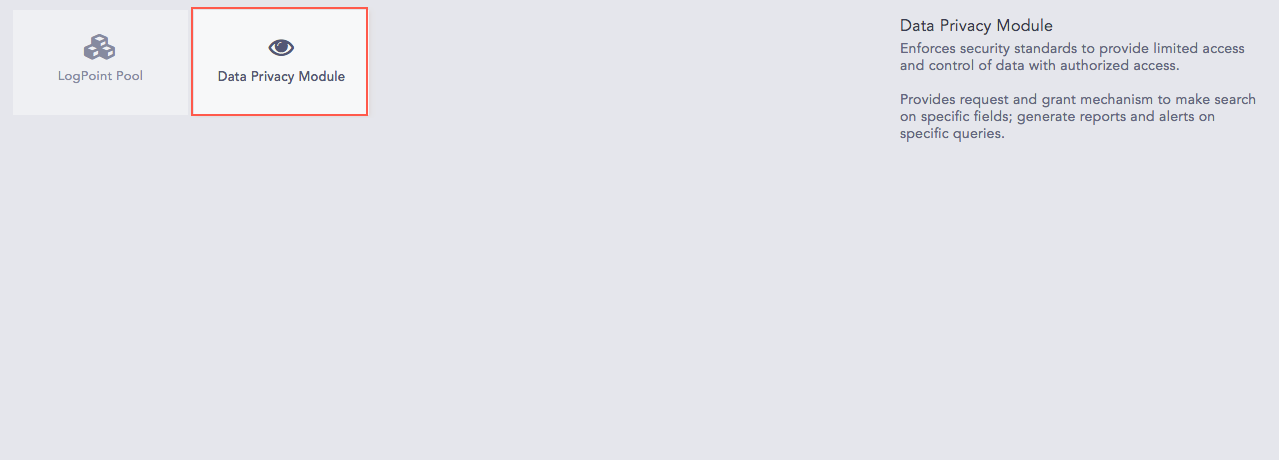
Data Privacy Module
Note
For more information on how the Four Eyes Principle is implemented in LogPoint, refer to the Data Privacy Module in LogPoint.
When the Data Privacy Module is enabled on a Fabric-enabled LogPoint, the selected fields from the normalized key-value pair of the Fabric-enabled LogPoint are encrypted in the Dashboard, Search, Report, and Incidents.
You can use the Data Privacy Module section in LPSM to generate a Data Privacy access request for encrypted fields that appear on the Search page. The request is created on behalf of the corresponding Fabric-enabled LogPoint’s admin user. Once the Fabric-enabled LogPoint’s user with the Can Grant Access privilege grants the request, the encrypted fields are decrypted.
The Data Privacy Module section also allows you to configure the template for the email that is sent to the LPSM user after the Data Privacy request is granted.
Note
For more information on how fields are encrypted and on the users with the Can Request Access and Can Grant Access privileges in a Fabric-enabled LogPoint, refer to the Configuring Data Privacy Module section.
There are two sections in the Data Privacy Module: Request and Email Template.
The Request section lists all the Data Privacy requests generated for Report, Alert, and Search. It also enables you to generate a Data Privacy request for Search.
For details on generating a Data Privacy request for a scheduled Report, refer to the Scheduling section. For details on generating a Data Privacy request for Alert, refer to the Creating an Alert Rule section.
Follow the steps mentioned below to generate a Data Privacy request for Search:
Go to Settings >> Configuration >> Data Privacy Module >> Request.
Click Add Request.
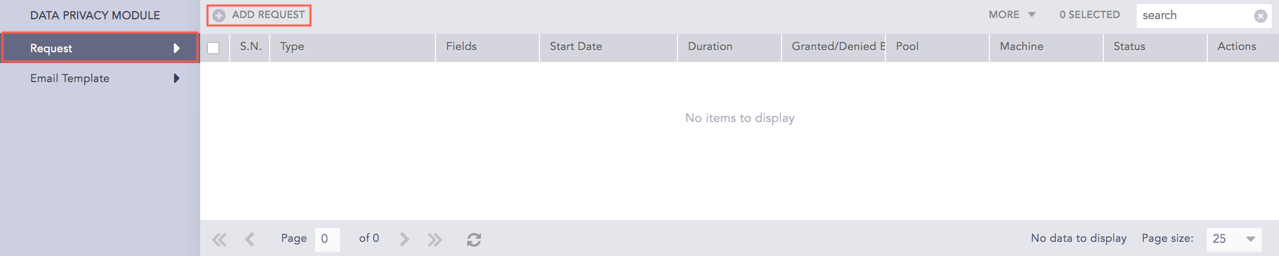
Request
The Data Privacy Access Request Form panel appears.
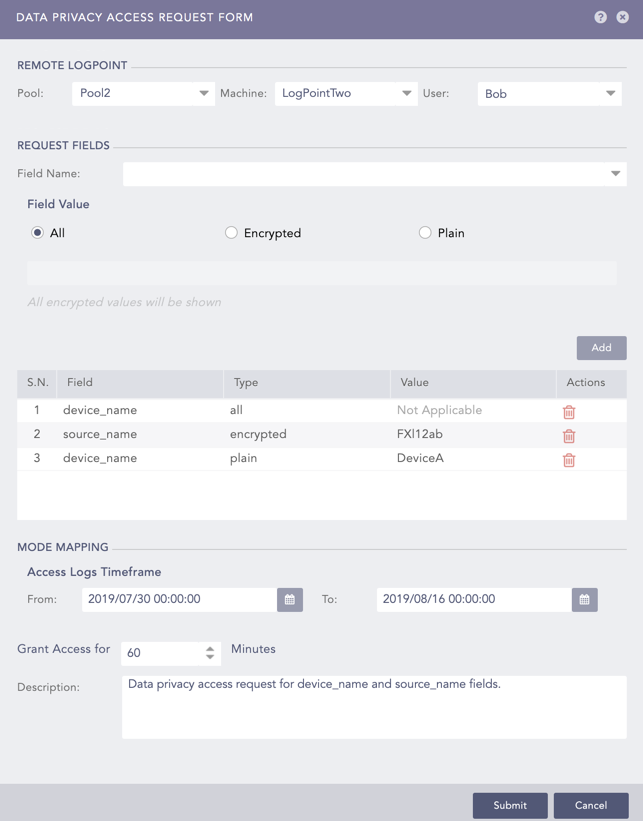
Data Privacy Access Request Form
In the Remote LogPoint section, select the name of the required Pool, Machine, and User where the Data Privacy Request is to be generated.
In the Request Fields section, select the Field Name that you want to decrypt. The Field Name populates on the basis of the fields that have been encrypted by the corresponding Fabric-enabled LogPoint. The Field Value has three available options:
The All option requests the decryption of all values of the given Field Name.
The Encrypted option requires you to enter the encrypted data of the corresponding Field Name that you want to decrypt. Doing so requests the decryption of the Field Name for all logs matching the encrypted data.
The Plain option requires you to enter the plain data for the corresponding Field Name that you want to decrypt. Doing so requests the decryption of the Field Name for all the logs matching the plain data.
Click Add after selecting the Field Name and the Field Value that you want to decrypt. You can add more than one Field and Field Value.
The selected field is populated in the table.
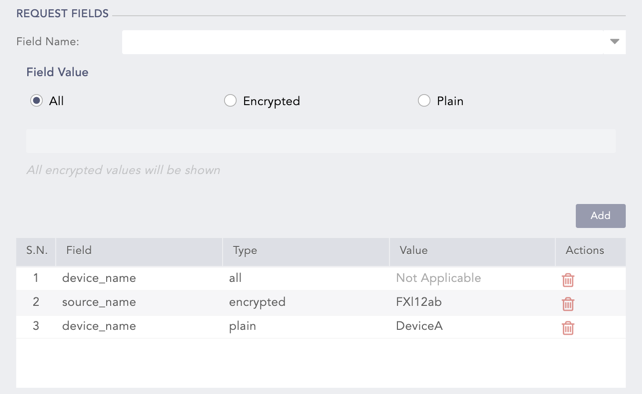
Request Fields
Scroll down and select the Access Logs Timeframe under the Mode Mapping section. The option allows you to select the time frame for the logs you want to decrypt.
Select the time required to access logs in the Grant Access for field. The default time for granting access is 60 minutes.
Enter a description for the generated request in the Description field.
Click Submit.
Note
The Search request is listed on the Data Privacy Module page along with the Data Privacy requests for Alert and Report- Scheduled.
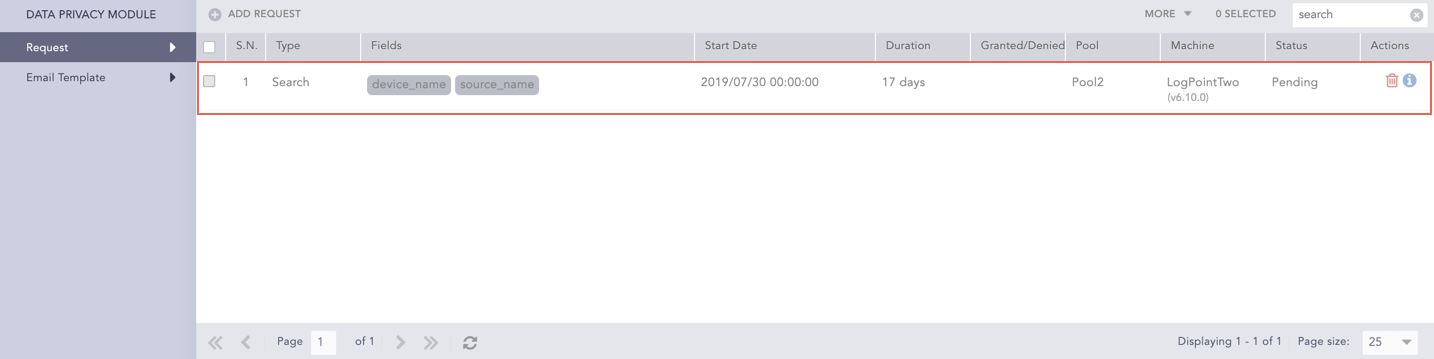
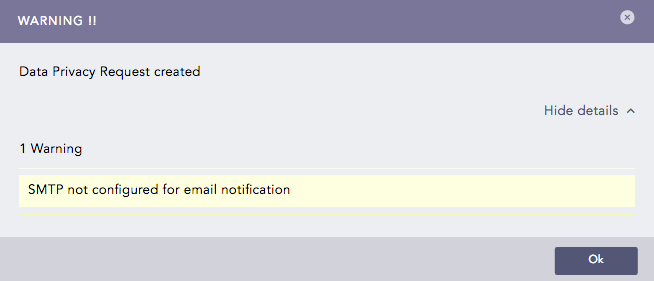
Data Privacy Request created
When the request is granted, the Status field in the list is updated to reflect the change.
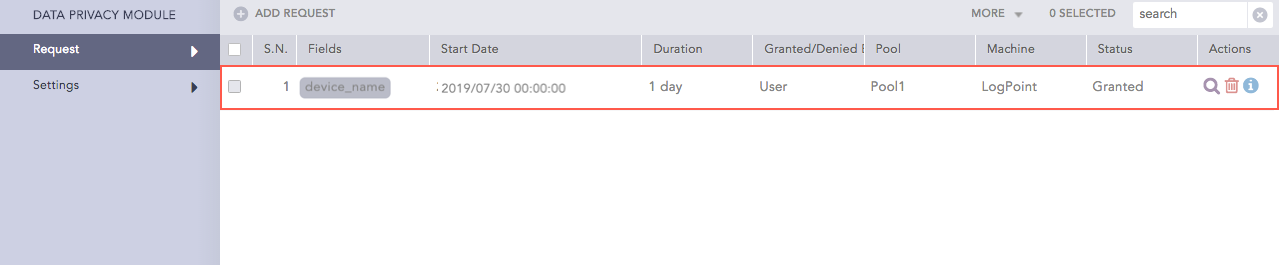
Data Privacy Request granted
Click the Search ( ) icon to search the decrypted logs for which the request is granted.
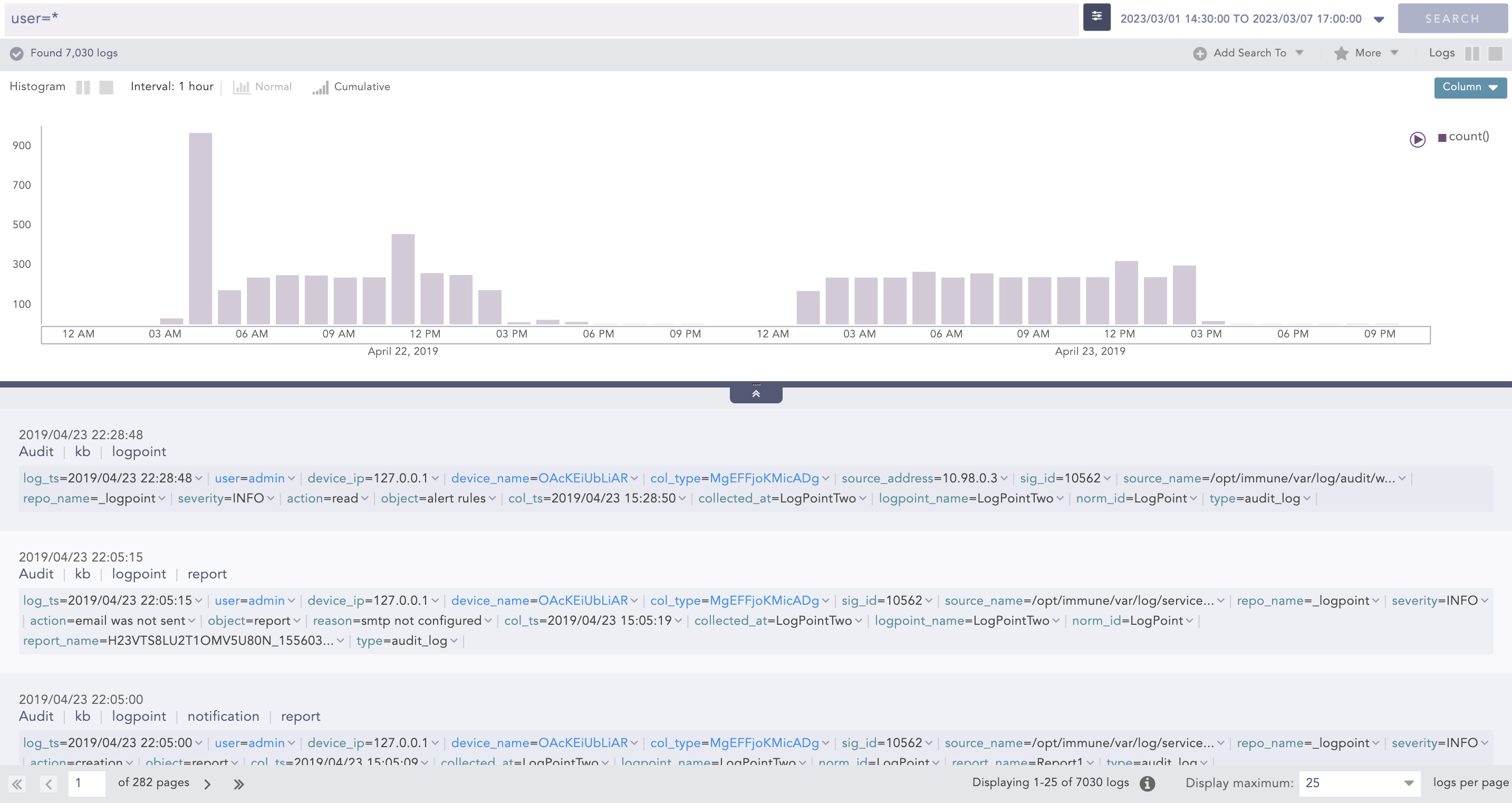
Data Privacy search
The Email Template section allows you to configure the template for the email that is sent to the LPSM user after the Data Privacy Request has been granted. You can configure the email template for Report, Alert, and Search from this section.
Go to Settings >> Configuration >> Data Privacy Module >> Email Template.
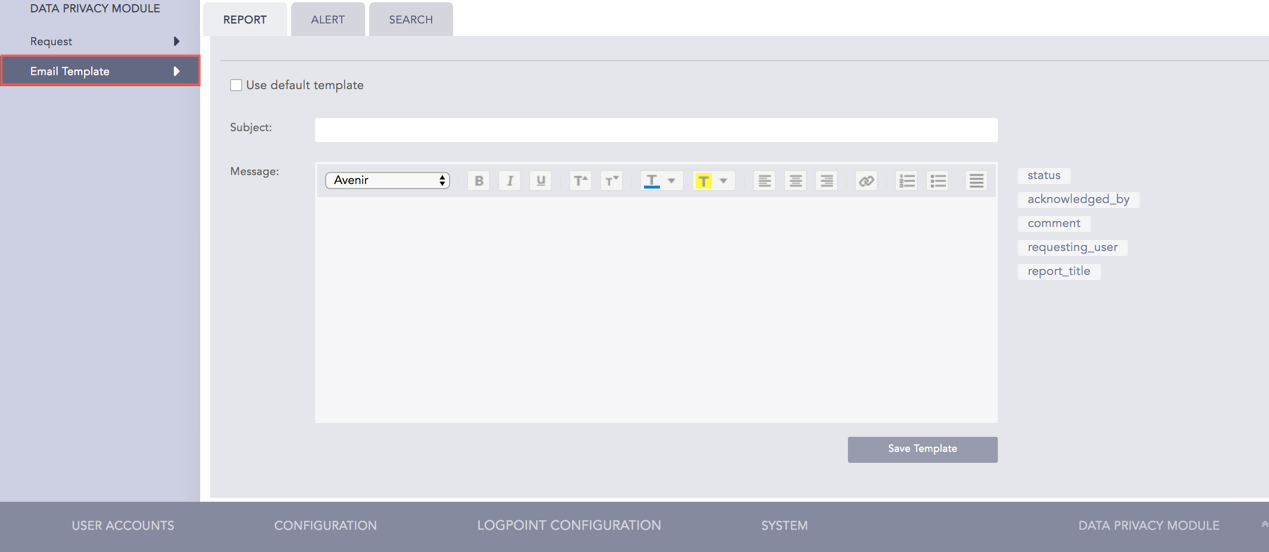
Email Template
Select Report, Alert, or Search to configure the email template for the corresponding entity.
Choose Use default template to use the pre-set format of the email template.
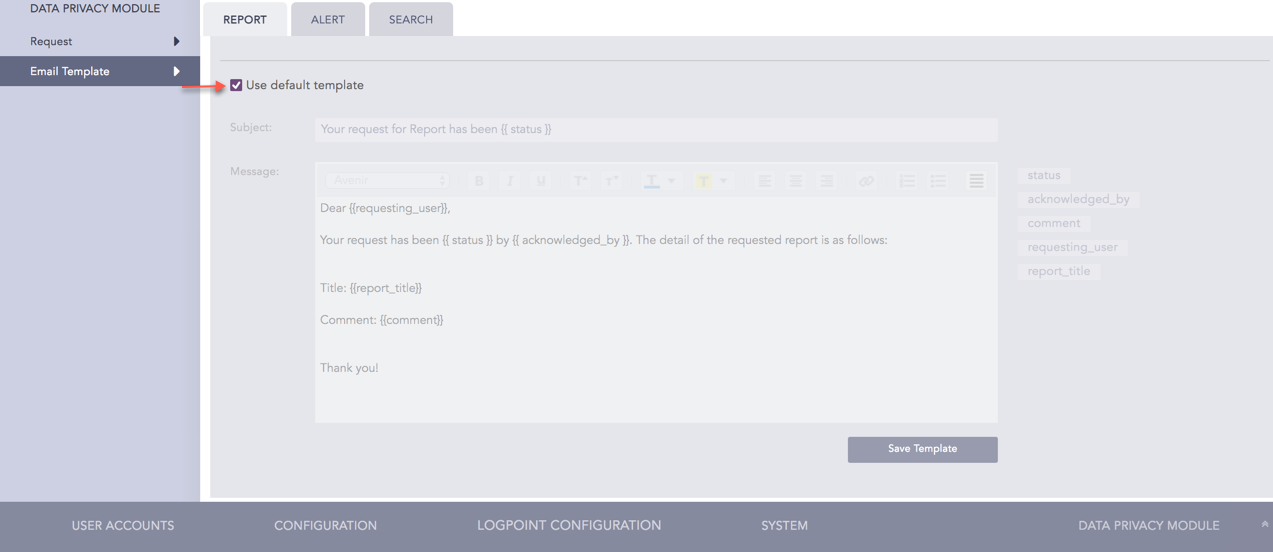
Use default template (Report)
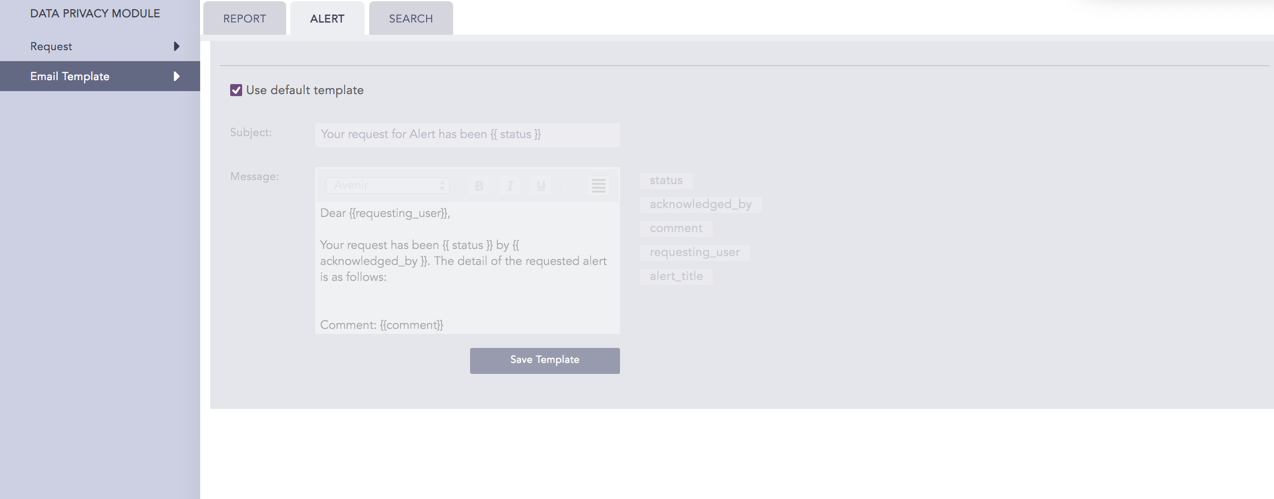
Use default template (Alert)
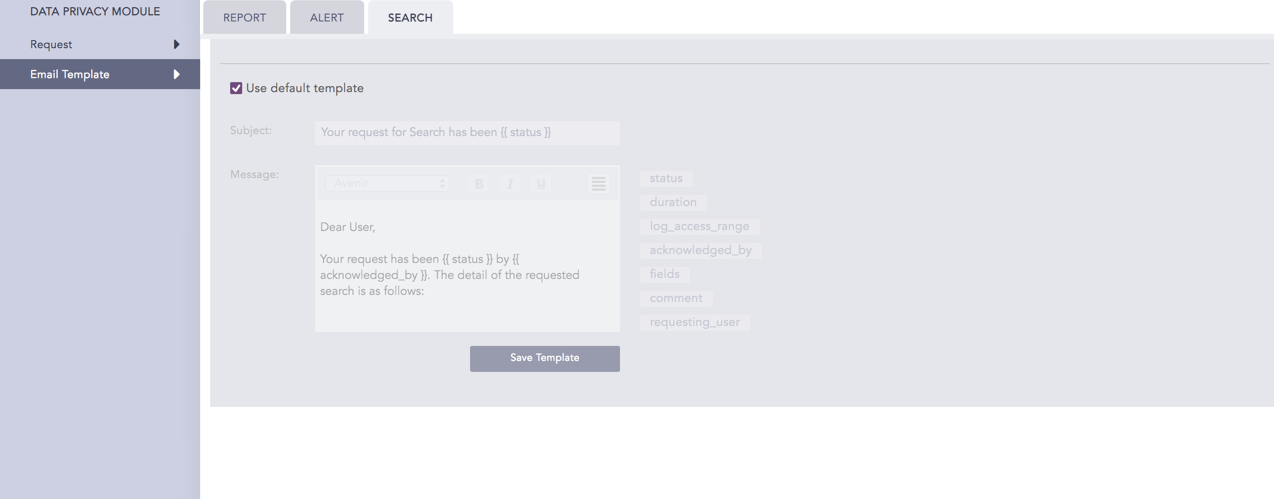
Use default template (Search)
Configure fields such as Subject and Message to create a customized template. You can also include Report, Alert, and Search specific fields such as status, acknowledged_by, comment, and requesting_user in the message body of the template.
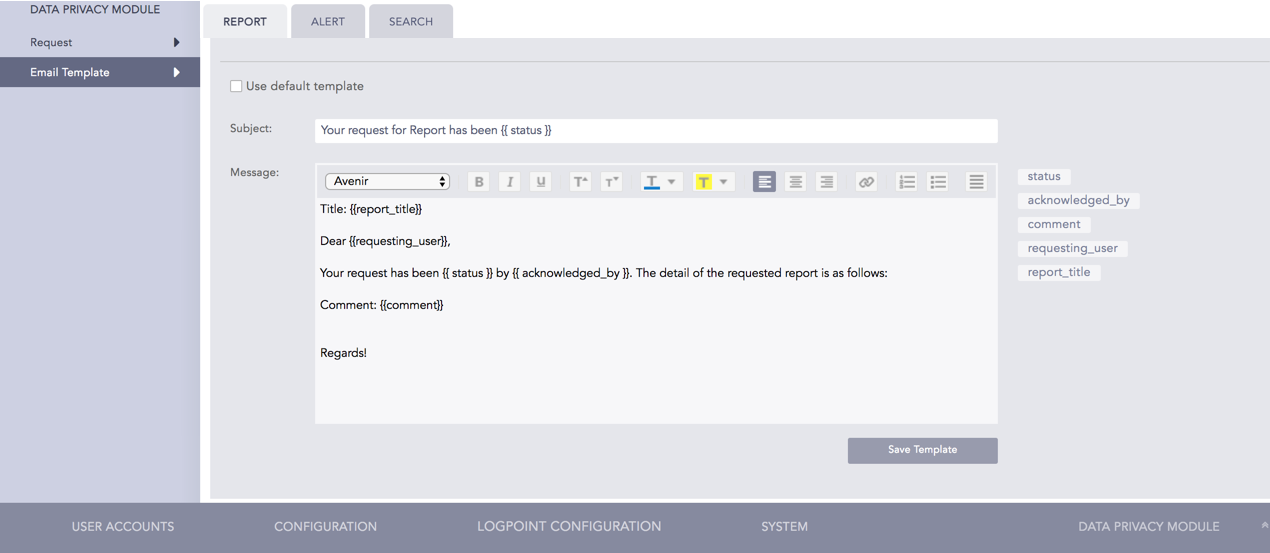
Use custom template
Click Save Template once the template is finalized.
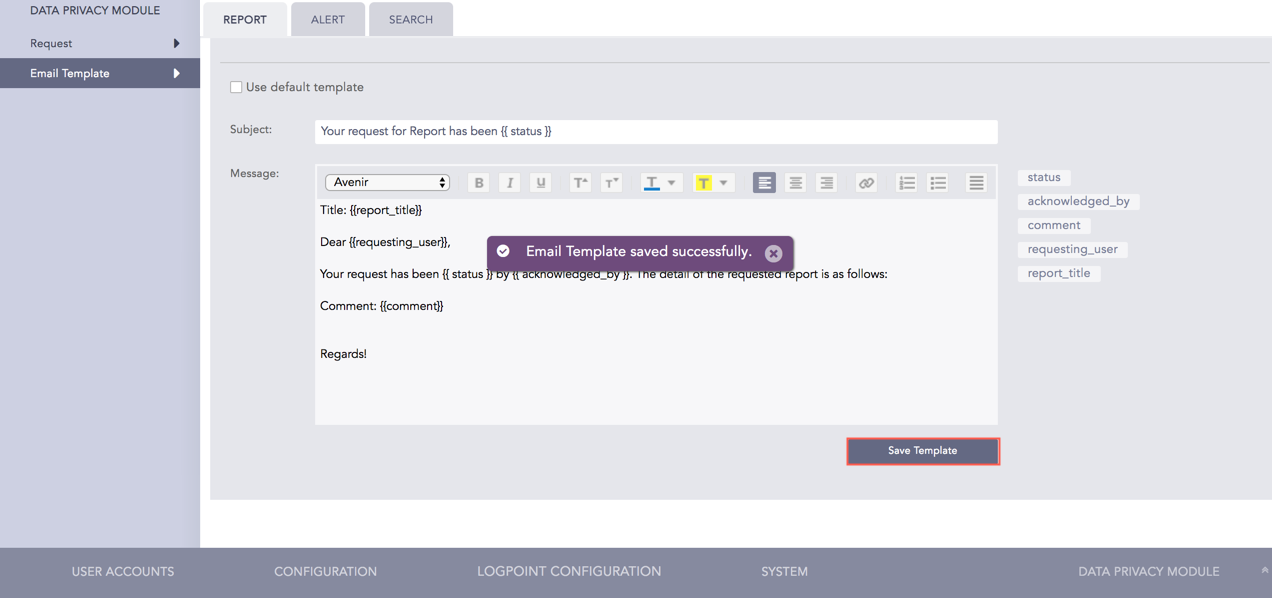
Save Template
The normalized fields encrypted under the Data Privacy Module appear in the encrypted form while raw logs are hidden from the dashboard.
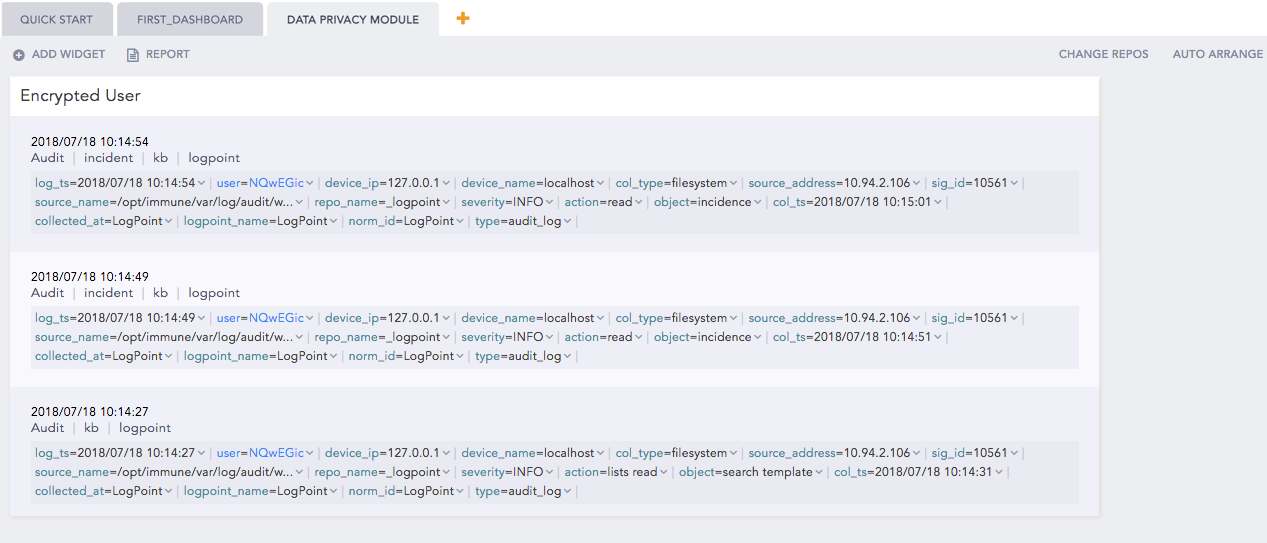
Behavior in Dashboard
The Search operation from LPSM to a Fabric-enabled LogPoint returns encrypted values for the fields which are encrypted under the Data Privacy Module. The raw logs are hidden from the Search page.
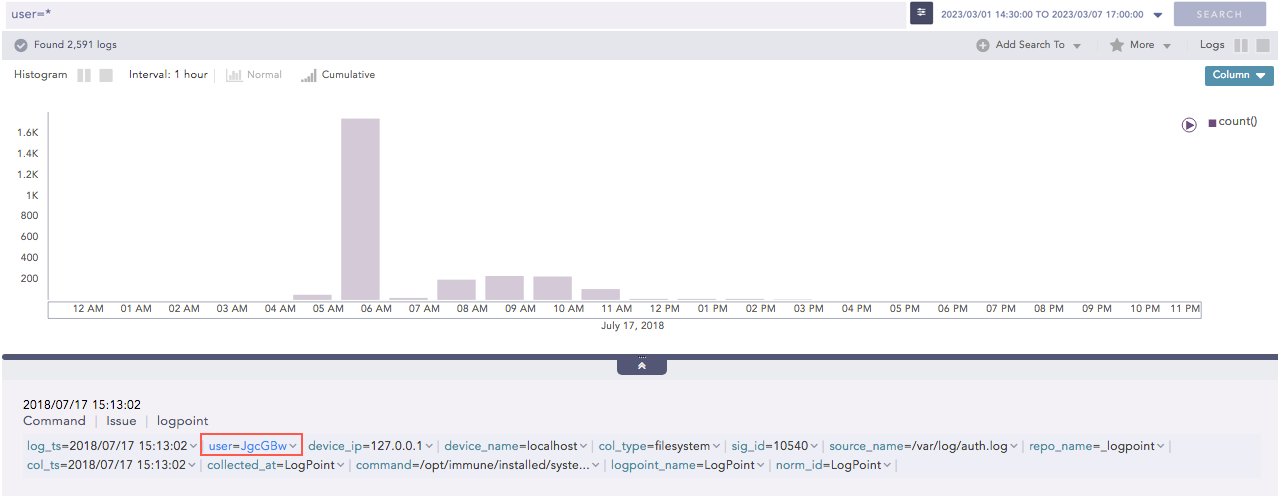
Behavior in Search
You can directly create a Data Privacy Access request by clicking on the drop-down arrow beside the encrypted field and selecting Request for user.
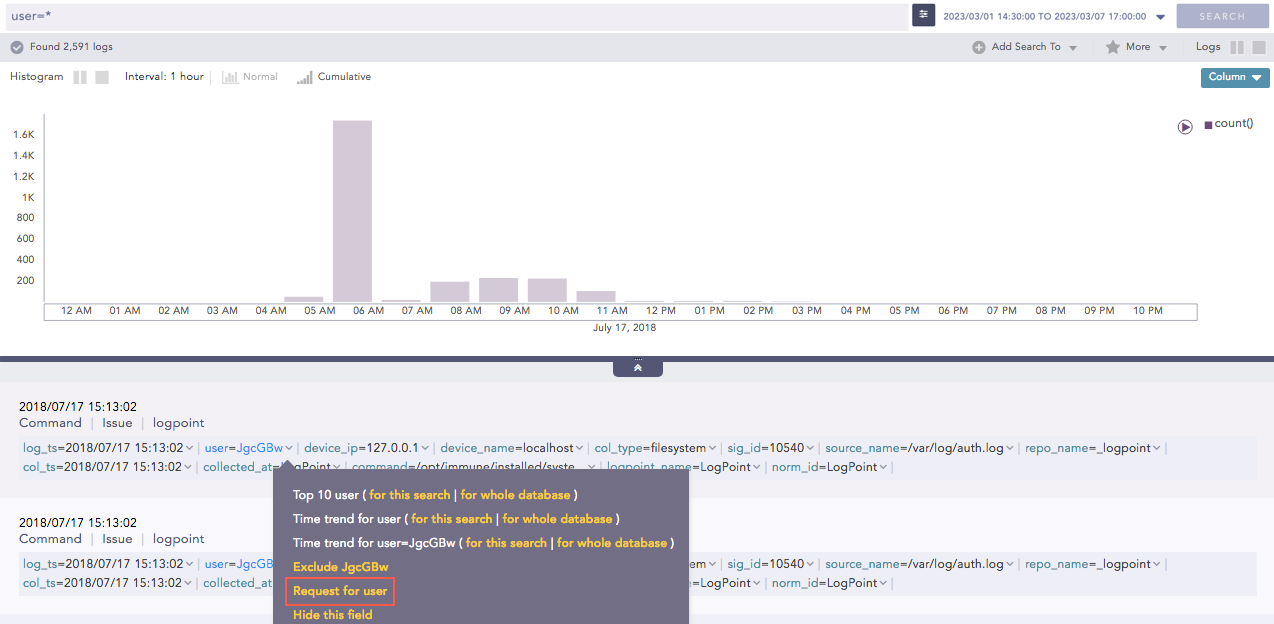
Data Privacy Request from Search
The Data Privacy Access Request Form adds the field and its corresponding value in the request field table.
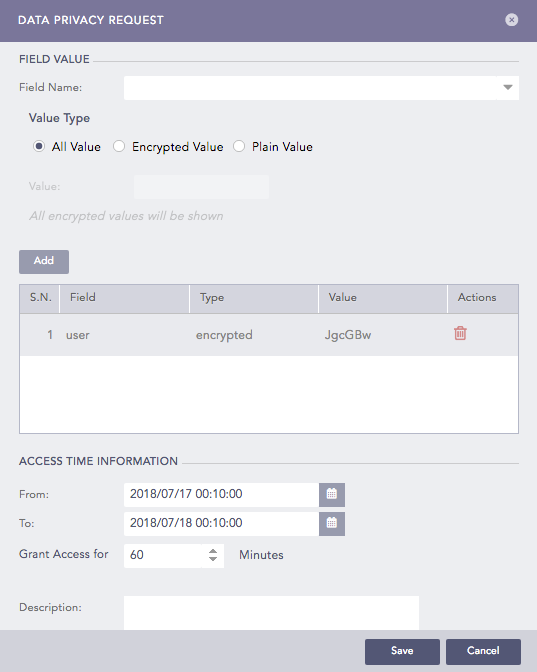
Data Privacy Request
LPSM can only access the encrypted reports generated in the subscribed Fabric-enabled LogPoint. You can create a Data Privacy Access request for Report from the Scheduling section of Report Templates.
LPSM can fetch all the incidents generated in the subscribed Fabric-enabled LogPoints, but the Data Privacy fields remain encrypted. You can create a Data Privacy Access request for Alerts from the Creating an Alert Rule section of Alert Rules.